1.6. QGIS interface
Typical appearance of QGIS main graphical user interface (Fig. 1.6.1) consists of:
- Bar Menu: main features and functions
- Toolbar: common features in a single click
- Layer panel: list of the project layers
- Map panel: geographic display of active layers
- Status bar: current coordinates, scale, rotation, and coordinate system
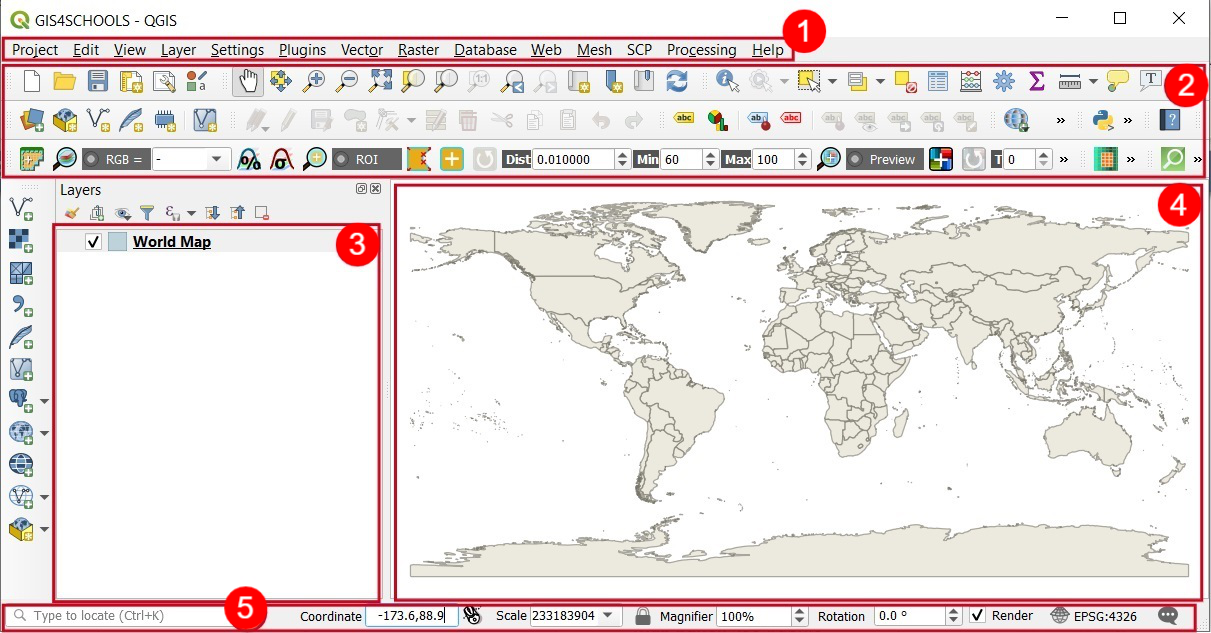
Fig. 1.6.1 – QGIS interface
Additional panels and toolbars can be activated or deactivated from View (1) → Panels (2) or View (2) → Toolbars(3). Alternatively, we can right-click on an empty space (without icons) (4) in the Toolbars or Menu bar section and we will get a full list of available panels and toolbars (Fig. 1.6.2).
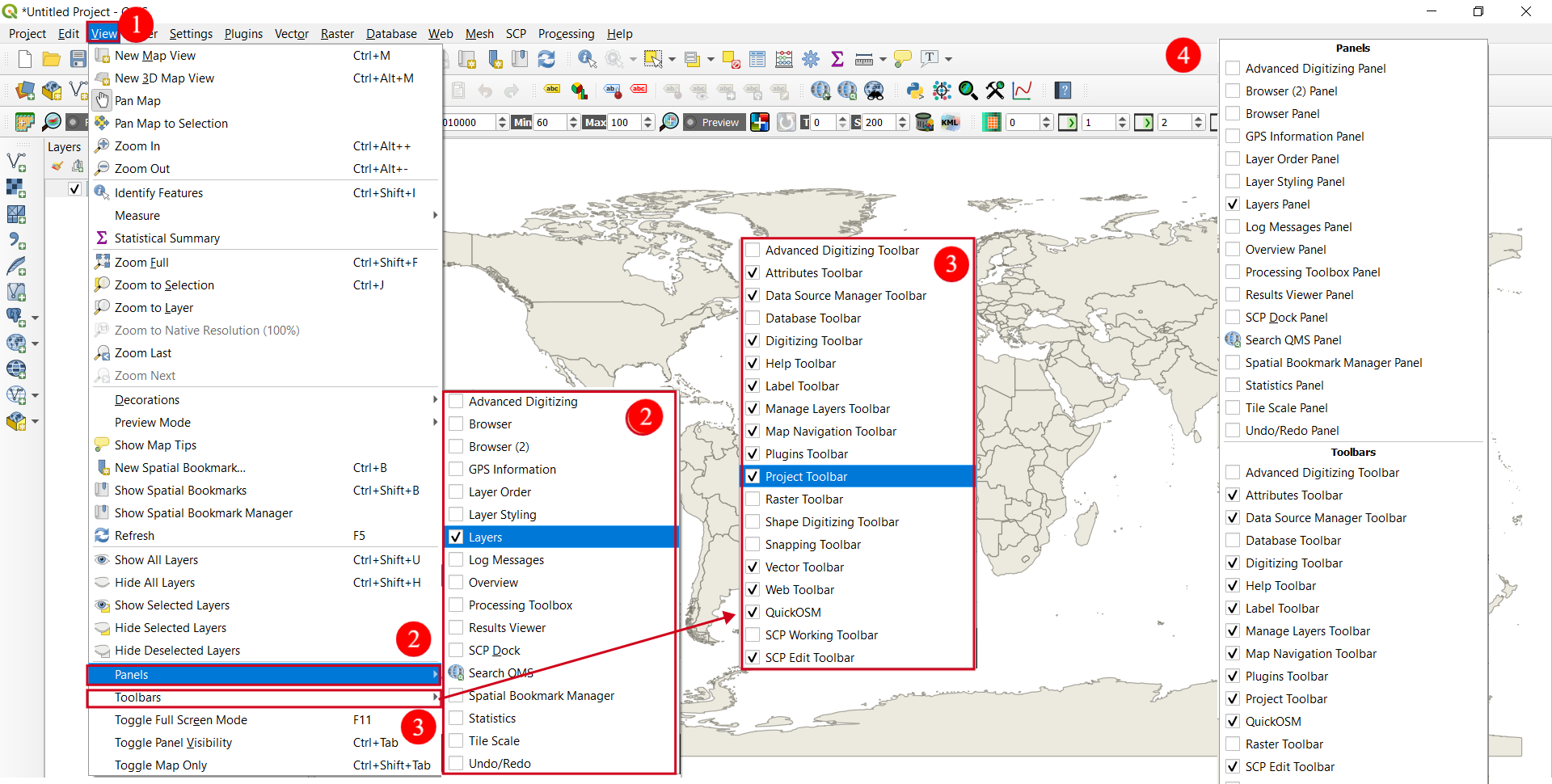
Fig. 1.6.2 – Adding Panels and Toolbars to QGIS interface
Moreover, we can choose/modify QGIS project properties. It can be done from menu Project (1) → Properties (2). Here we can modify different points of project properties such as general project properties, metadata, CRS, default style, etc. (Fig. 1.6.3)
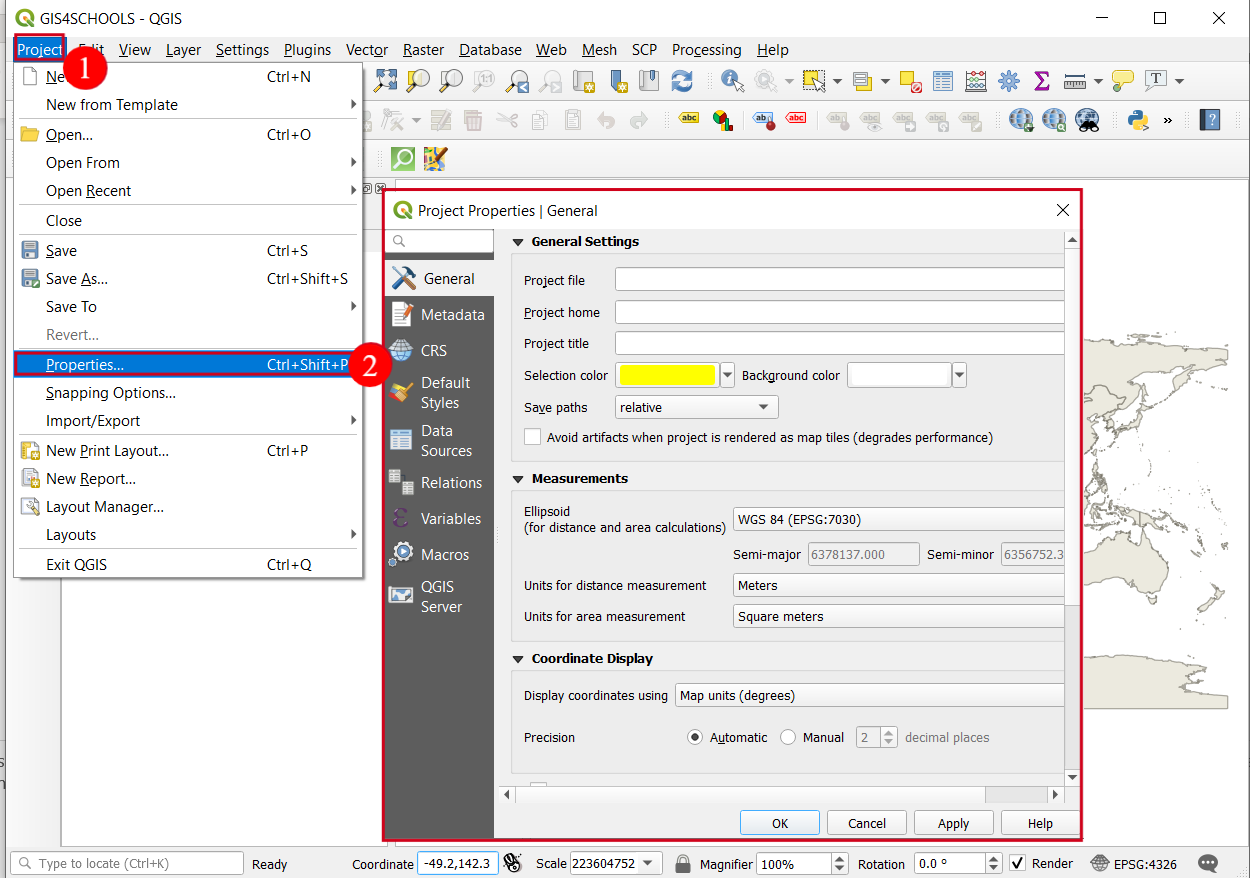
Fig. 1.6.3 – Checking/modifying QGIS project properties - General
Finally, the appearance of QGIS can be affected by the settings of the software itself. From menu Settings (1) select Options (2) to configure the ways to use QGIS (Fig. 1.6.4). For example, we can change the general settings, or settings related to the system, CRS, data sources, etc.
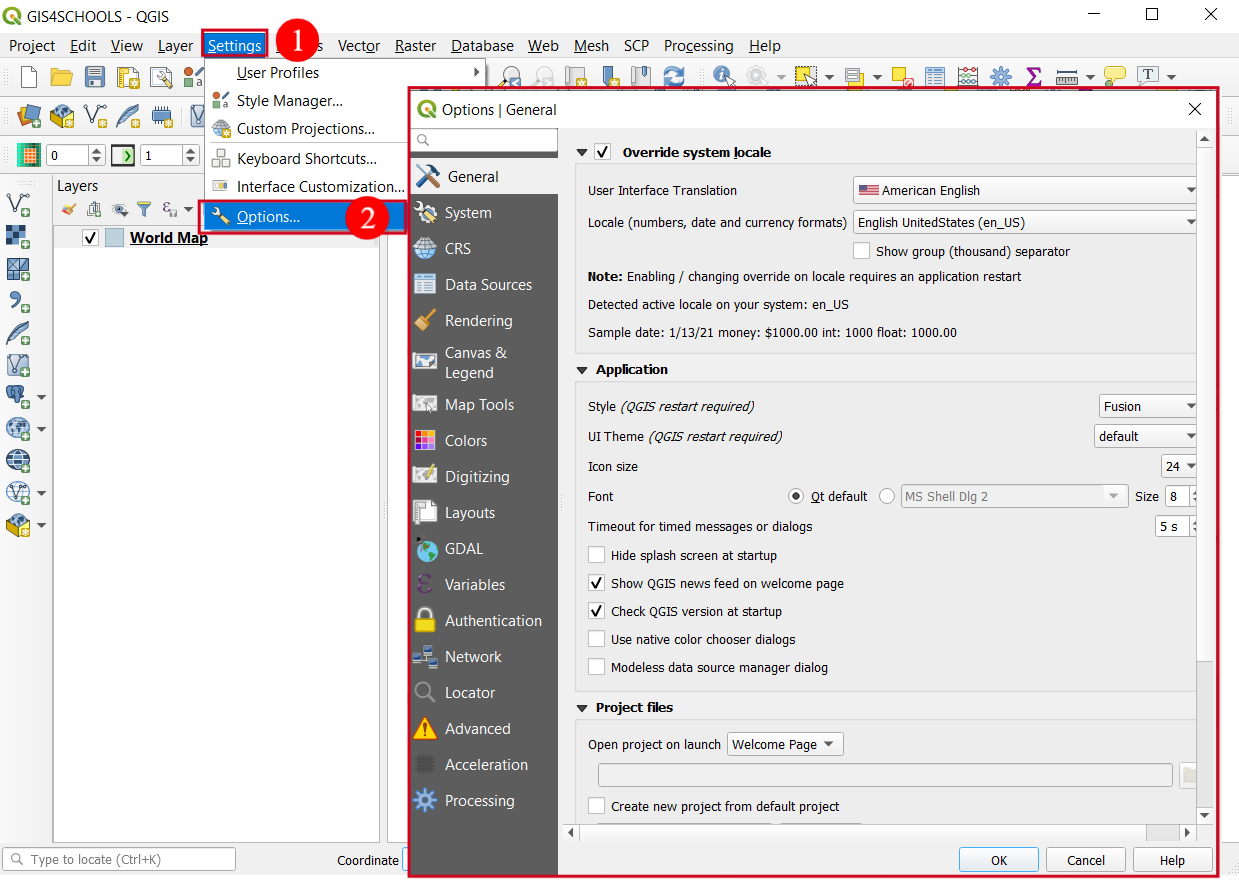
Fig. 1.6.4 – QGIS settings
Important
To continue with the lecture, you are requested to download the data  that will be used for the following exercises